
Cursor AI is an AI-native code editor and coding-agent environment built around a VS Code-style experience. In 2026, the most effective way to use it is not to ask one giant prompt to build an application.
Use Plan for complex work, Agent for implementation, Ask for read-only exploration, Debug when you need runtime evidence, and rules, skills, MCP servers and hooks to give the agent repeatable context and controls. For long-running or parallel work, Cursor now also supports subagents and Cloud Agents.
What Is Cursor AI?
As mentioned, Cursor is an AI-first code editor and coding-agent platform. It is built on the VS Code codebase, so developers can retain a familiar editor experience while giving AI agents access to codebase search, file editing, terminal commands, web research and other tools.
Cursor’s Agent can inspect a repository, change multiple files, run commands and tests, fix errors and review its own work. Cursor also supports read-only exploration, planning, debugging, persistent project rules, MCP integrations, skills, hooks, subagents and remote cloud-based development agents.
Therefore, it is more than just “an IDE with a chatbot.” Cursor is better understood as a development environment with several AI execution modes and a growing agent harness around them.
Cursor is also now part of SpaceX. The company announced that the acquisition was completed in August 2026.
Cursor is now part of @SpaceX.
— Cursor (@cursor_ai) August 14, 2026
Today, we have officially closed our acquisition. We will join the @SpaceXAI team to help make Grok the world's most useful AI and improve Grok Build, Grok Bot, Grok API, Cursor, and more.
SpaceX has built some of the most inspiring and…
The company change matters less to day-to-day usage than the product shift happening at the same time: Cursor is moving from assisted coding toward long-running agents, parallel work and more autonomous software delivery.
Cursor Modes: Agent, Ask, Plan and Debug
| Mode | Best for | Edits files? |
| Agent | Building features, refactoring and fixes | Yes |
| Ask | Read-only codebase exploration and explanation | No |
| Plan | Complex work where you want to review the approach first | After approval / Build |
| Debug | Hard bugs that need runtime evidence | Yes |
Use Agent for most implementation tasks. Use Ask when you want the AI to inspect and explain without editing. Use Plan when a change spans multiple files, systems or architectural decisions. Lately, use Debug when the problem is difficult to reproduce and you need evidence from logs or runtime behavior.
How to Get Started With Cursor AI
1. Install Cursor and open a real repository
The first step to getting started with the AI-native IDE is to Download Cursor. You can download the IDE from the official website here.
Once the download is complete, import your existing VS Code settings if you use them and open a real project rather than a blank folder. Cursor becomes much more useful when it can search a codebase, inspect dependencies and understand project structure.
2. Open the Agent panel
In the desktop editor, the Agent panel is the main workspace for AI-assisted development. The exact shortcuts can vary by platform, but the important part is choosing the right mode before you start.
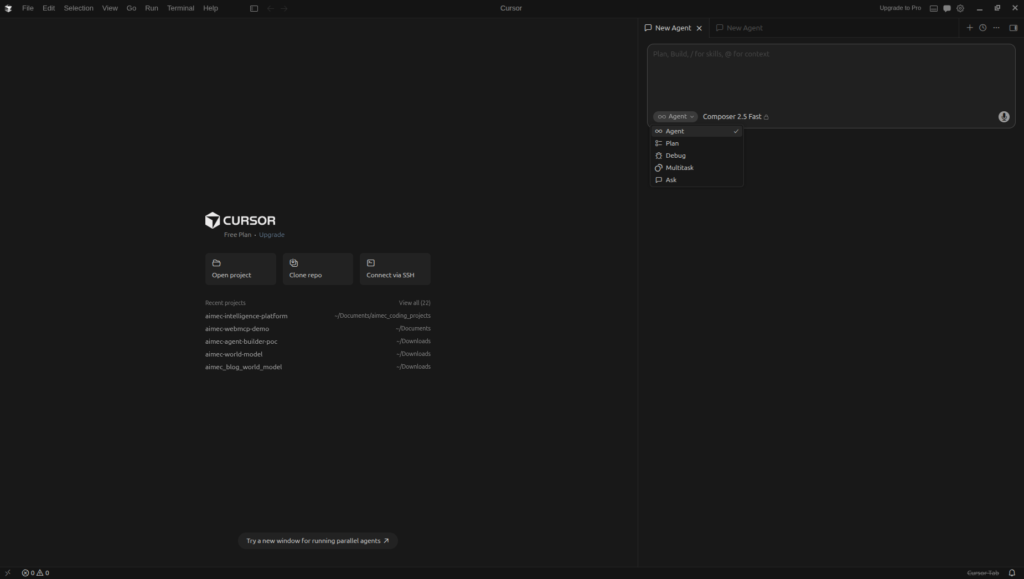
You can select the Agent mode from the mode dropdown in Cursor (Source: Cursor IDE)
3. Start with a bounded task
A good first task has a clear success condition. “Add server-side validation to the signup endpoint and add tests” is better than “improve the backend.” The agent works best when it can determine whether the task is complete.
4. Review changes as engineering work
Cursor can make large multi-file edits quickly, but speed is not verification. Review diffs, run tests, inspect changed interfaces and check whether the behavior matches the requirement before you merge the work.
The Cursor AI Workflow I Use to Build Faster
I have used Cursor to accelerate work across AI applications, backend services, documentation and containerized projects over recent months, and have found that a structured agent workflow can compress planning, implementation, review and documentation into a much shorter feedback loop.
Below is the process I use to maximize my coding output with the Cursor AI IDE.
Step 1: Define the outcome before you prompt
Before asking Cursor to write code, I define what “done” means. During this step, I include the user-facing behavior, constraints, files or systems that must not change, along with the tests that should pass and any relevant architectural rules.
For example, instead of: “Build authentication.”
I use something closer to: “Add email/password login to the existing FastAPI service. Reuse the current user model, do not change the database schema, add rate limiting to the login route, add unit tests for success and invalid-password cases, and run the existing test suite before finishing.”
The second prompt gives the agent a boundary and a verification target.
Step 2: Use Plan Mode for complex changes
Plan Mode is now a first-class part of Cursor. It researches the codebase, can ask clarifying questions and creates a reviewable implementation plan before code is written.
For a multi-file feature, I use Plan Mode to force the architecture conversation before implementation. I want the plan to identify the files that will change, the data flow, external dependencies, test strategy and likely failure points.
If the plan is wrong, fix the plan before asking the agent to build. That is normally cheaper and cleaner than repairing a bad implementation after hundreds of lines have changed.
Step 3: Build with Agent, but keep the scope visible
Once the plan is solid, I use Agent to implement it. Cursor Agent can search the repository, edit multiple files, run terminal commands and fix errors.
I do not treat the agent chat as a place to disappear from the task. Instead, I watch what files it changes, pay attention to commands it runs and interrupt when it starts solving a different problem than the one in the plan.
For larger tasks, it may be best to split the implementation into milestones. For example: data model and API first, tests second, frontend integration third. This makes failures easier to isolate and keeps the context cleaner.
Step 4: Make verification part of the prompt
A code-generating agent is much more useful when it can close the loop. Ask it to run the relevant tests, linting, type checks or application-specific validation before declaring the task complete.
The prompt should contain the verification criteria. If a task changes an API, have the agent exercise the endpoint. If it changes a UI, have it run the app and verify the behavior. If it changes a parser, provide representative inputs and expected outputs.
Cursor’s Cloud Agents can go further because they run in isolated VMs with configured repositories, dependencies and network access. They can test the changed software and produce artifacts such as screenshots, videos and logs.
Step 5: Use Debug Mode when the problem needs evidence
It won’t always be smooth sailing. Fortunately, you can use Debug when a bug is intermittent, environment-dependent or difficult to infer from static code. The goal is to collect runtime evidence, narrow the root cause and then make the smallest justified change.
This is a better pattern than repeatedly telling the agent “that did not work” and asking it to guess again.
Step 6: Use Ask for understanding and documentation
There is also Ask mode, which is read-only. I use it after implementation when I want a concise explanation of the architecture, changed data flow, security implications or unfamiliar code without risking another edit.
This is also a good point to generate technical documentation, a change summary or a handoff note. The agent already has the repository context, so documentation can be produced close to the implementation instead of becoming a separate cleanup job later.
Step 7: Use subagents when the work can be decomposed
Cursor now also supports subagents with their own context windows. The parent Agent can delegate codebase exploration, shell work or specialized tasks while preserving the main conversation’s context.
This is useful when a task has genuinely independent workstreams: one subagent can inspect authentication, another can research an integration, and another can validate tests. While this is a powerful feature, it’s best to avoid spawning subagents for tiny one-shot tasks; the benefit comes from parallelism, specialization and context isolation.
Step 8: Move long-running work to Cloud Agents
Cloud Agents run in isolated remote development environments and can continue without your local machine being connected. They can work from web, mobile, desktop, Slack, source-control integrations and the API.
Use them when a task needs longer execution, a configured environment, parallel agents or a PR-based handoff. A local Agent is still the better choice when you want tight interactive control over a change in your current workspace.
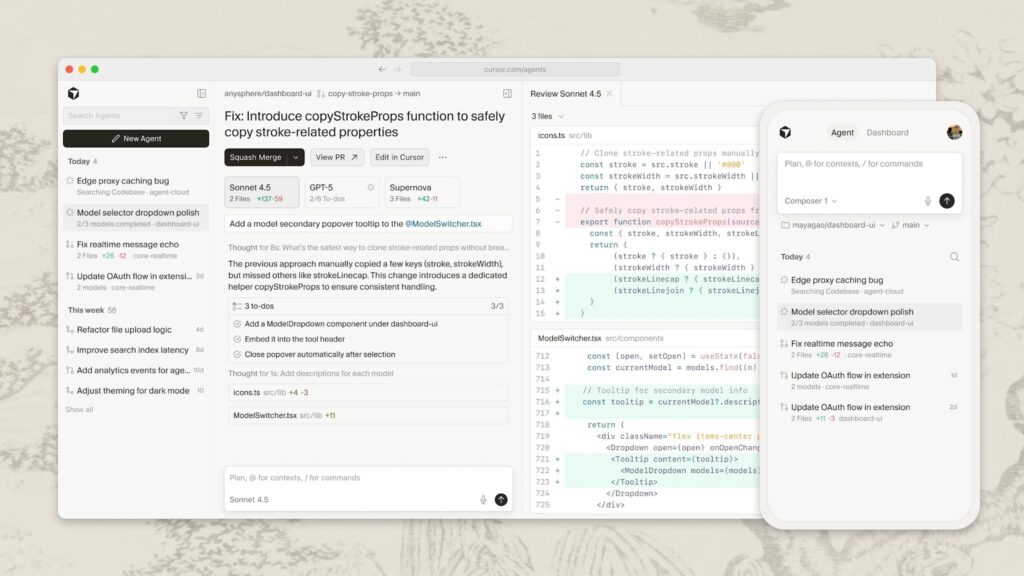
Cursor Cloud Agents can run long-running development work in remote environments. Source: Cursor.
Rules, Skills, MCP and Hooks: The Part Most Cursor Guides Miss
The biggest productivity improvement often comes from reducing how much context you have to repeat.
Project Rules
Cursor rules provide persistent instructions to the agent. Project rules live in .cursor/rules and can be version-controlled with the repository.
Use rules for stable engineering standards: naming conventions, architecture boundaries, testing requirements, security constraints, framework choices and “never do this” instructions. If you keep correcting the same behavior in chat, that correction probably belongs in a rule.
Skills
Skills package reusable agent workflows. They are useful for repeatable tasks such as generating release notes, running a specific quality checklist or performing a domain-specific engineering workflow.
MCP Servers
Cursor supports the Model Context Protocol (MCP) as well, so agents can connect to external tools and data sources. MCP is useful when the coding agent needs controlled access to systems beyond the repository, such as databases, internal APIs, issue trackers or other development services.
Hooks
Then there are also Hooks, which let teams observe, block or extend stages of the agent loop. They can run formatters after edits, scan for secrets, gate risky shell commands, audit tool use or inject context at session start.
For teams, this matters because “give the coding agent more autonomy” should be paired with “make the execution path observable and governable.”
Cursor plugins can bundle MCP servers, skills, subagents, rules and hooks. Source: Cursor.
A Safer Cursor Agent Workflow
Autonomy should increase only when the environment and validation are strong enough to support it.
Cursor provides run modes that determine when commands and tools execute automatically. The current documentation recommends Auto-review as a practical default for many users: known-safe actions can run, sandboxing is used where possible and higher-risk actions are reviewed.
My operating rules are:
- keep production credentials out of casual agent sessions;
- review shell commands that can delete data, change infrastructure or modify production systems;
- give the agent test environments and representative data instead of direct production access where possible;
- require tests or validation for every meaningful code change;
- review generated diffs before merge;
- use hooks, allowlists or team policies when agent execution becomes part of a business workflow.
Cursor AI Pricing in 2026
Cursor’s current individual plans are:
| Plan | Price | Best fit |
| Hobby | Free | Testing Cursor / light usage |
| Pro | $20/mo | Individual developers |
| Pro+ | $60/mo | Daily Agent users |
| Ultra | $200/mo | Agent power users / heavy usage |
Pro, Pro+ and Ultra include separate usage pools for Cursor models and third-party models. Model choice affects how quickly the included usage is consumed, and on-demand usage is available after plan limits.
Cursor’s current documentation says all Auto modes bill at the list price of the model each request is routed to. Cursor Router’s newer Balance and Intelligence routing is currently documented for Teams and Enterprise plans.
The practical lesson is simple: do not optimize your Cursor workflow around an assumption that “Auto is free.” Use Auto when you want routing, and manage cost by monitoring the usage dashboard, choosing models intentionally for expensive work and keeping tasks well scoped.
The Best Cursor AI Practices I Would Use in 2026
1. Plan before large edits
Use Plan Mode when a task touches several files, has multiple valid approaches or could create architectural debt.
2. Keep tasks small enough to verify
An agent can change 20 files quickly. That does not mean a 20-file change is the best unit of work. Smaller milestones are easier to review and roll back.
3. Put persistent standards in rules
Do not spend tokens restating your Python naming standard, test conventions or security rules every session.
4. Give the agent a testable definition of done
“Make it better” is not a test. “These three tests pass and the endpoint returns this schema” is.
5. Use the cheapest adequate model for the task
Exploration, formatting and routine edits do not always need the most expensive model. Complex architecture or difficult debugging may justify a stronger one.
6. Use separate contexts for separate jobs
Start a new chat when the task changes. Long conversations accumulate irrelevant context and make it harder for the model to know which instructions are still important.
7. Review diffs, not just the final chat message
The code is the deliverable. Inspect it.
8. Use subagents and cloud execution only when they add leverage
Parallelism is useful when workstreams are independent. More agents are not automatically better.
What Cursor AI Is Good At
Cursor is particularly strong for:
- repository exploration;
- multi-file implementation;
- refactoring;
- test generation and repair;
- debugging with repository context;
- repetitive backend and frontend work;
- documentation close to the code;
- agentic workflows that combine terminal, files and external tools.
It is most useful when the repository has clear conventions, tests and an environment the agent can actually run.
Where Cursor AI Still Struggles
Cursor does not remove the need for engineering judgment.
Agents can still misunderstand ambiguous requirements, choose the wrong abstraction, produce code that passes superficial tests but misses a business rule, or make a locally sensible change that creates a system-level problem.
The risk grows when:
- the repository has weak tests;
- requirements are vague;
- production state is difficult to reproduce;
- the agent has broad permissions without guardrails;
- the developer accepts large diffs without understanding them.
The faster the agent can change software, the more important review and verification become.
Final Verdict
Cursor can make a developer dramatically faster when it is used as an agent workflow rather than as autocomplete.
The 2026 version of that workflow is more mature: plan the change, give Agent a bounded implementation job, require verification, use Debug for evidence, use Ask for understanding, move stable instructions into rules, connect approved tools through MCP, and use subagents or Cloud Agents when parallel or long-running work actually helps.
That is the real competitive advantage of Cursor now. The product is no longer just an editor that writes code for you. It is becoming an agent harness for software engineering. The developers who get the most value from it will be the ones who design the harness, constraints and verification loop as carefully as they design the code.
Frequently Asked Questions
Can I use Cursor AI for free?
Yes. Cursor has a free Hobby plan with limited Agent usage and access to the editor. Paid plans increase agent usage and add access to more advanced capabilities.
What is Cursor AI used for?
Cursor is used to understand codebases, plan features, write and edit code, run terminal commands, fix bugs, generate tests, review changes and automate parts of the software-development workflow.
What is the difference between Agent, Ask, Plan and Debug?
Agent can implement changes. Ask is read-only and is best for codebase exploration and explanation. Plan creates a reviewable implementation plan before building. Debug is designed for difficult bugs where runtime evidence is useful.
Does Cursor support MCP?
Yes. Cursor supports MCP servers so agents can access approved external tools and data sources. Cloud Agents can also use team-configured MCP servers.
Can Cursor run agents in the cloud?
Yes. Cursor Cloud Agents run in isolated cloud development environments, can work without your local machine being online and can produce pull requests plus artifacts such as logs, screenshots and videos.
Does Cursor support multiple agents?
Yes. Cursor supports subagents with isolated context windows, and Cloud Agents can be run in parallel for longer or independent tasks.
Is Cursor AI better than ChatGPT?
They solve different problems. Cursor is specialized for software development and gives agents direct access to repository context, files, terminal commands and development workflows. ChatGPT is a broader general-purpose assistant. For repository-level implementation, Cursor’s integrated environment can be more convenient; for broader research and cross-domain work, a general assistant may be more appropriate.
Is Cursor AI safe for company code?
That depends on configuration, permissions, data policy and workflow. Cursor offers privacy settings, team controls, run modes and enterprise features, but organizations should still apply their own security controls, code review, access policies and secrets-management practices.

Steven Walgenbach is an AI Engineer specializing in AI agents, large language models, retrieval-augmented generation and business process automation. He designs and builds practical AI systems that connect with existing tools, data sources and workflows to help businesses reduce manual work, improve decision-making and scale more efficiently.
His work includes developing multi-agent systems, private and locally hosted AI solutions, custom knowledge assistants, SEO automation pipelines and LLM-powered applications using Python, LangGraph, CrewAI, the OpenAI Agents SDK and other modern AI frameworks.
Through AIMEC, Steven helps businesses move beyond AI experimentation and identify practical opportunities where artificial intelligence can deliver measurable operational and commercial value.