As large language models continue to transform how people work, build software, and interact with information, there has been a growing interest in running AI locally rather than relying entirely on cloud-based providers. While services such as ChatGPT, Claude, and Gemini have made artificial intelligence accessible to millions of users, they all depend on remote infrastructure where prompts and responses are processed on someone else’s servers.
For developers, businesses, and privacy-conscious users, this raises an important question: what if you could run powerful AI models directly on your own computer? This is where LM Studio enters the picture.
Over the past few years, LM Studio has become one of the most popular tools for experimenting with open-source large language models locally. Whether you are a developer looking to test a new model, a business exploring private AI deployments, or simply someone curious about running Llama or DeepSeek on your laptop, LM Studio provides a relatively simple way to get started.
If you’ve been searching for answers to questions like what is LM Studio, how to use LM Studio, or how to install LM Studio on Ubuntu, this guide will walk you through everything you need to know.
What Is LM Studio?
At its core, LM Studio is a desktop application that allows users to discover, download, run, and interact with large language models directly on their own computer. Instead of connecting to an AI service hosted in the cloud, LM Studio enables users to run models locally using their available CPU and GPU resources.
The software sits in an interesting position within the AI ecosystem. LM Studio is not itself an AI model. Rather, it serves as a platform that makes local AI accessible through an intuitive graphical interface.
Before tools like LM Studio became popular, running an open-source language model often required downloading model files manually, configuring inference frameworks, working with terminal commands, and troubleshooting compatibility issues. While experienced developers could manage these steps, the process created a significant barrier for newcomers.
LM Studio simplifies much of this complexity. Users can browse available models, download them directly within the application, launch them with a few clicks, and begin chatting with them almost immediately. The result is a significantly more approachable experience that allows people to focus on using AI rather than configuring infrastructure.
Why Has LM Studio Become So Popular?
The rapid growth of LM Studio is closely tied to the rise of open-source AI. Over the last few years, open models have become dramatically more capable. Models that once required expensive enterprise infrastructure can now run efficiently on consumer hardware. LM Studio emerged at exactly the right time. As more users became interested in experimenting with local AI, they needed a tool that could simplify the process without requiring extensive machine learning expertise.
One of the biggest advantages is privacy. When running a model locally, prompts never need to leave your machine. This can be particularly valuable for businesses dealing with sensitive information or developers working with proprietary data. Instead of transmitting information to a third-party API, everything remains within your own environment.
Another reason for LM Studio’s popularity is accessibility. The software removes many of the technical barriers that previously prevented non-technical users from exploring open-source AI. Someone with no experience in machine learning can install LM Studio, download a model, and begin chatting with it within minutes.
As an AI engineer, I have noticed that many organizations initially assume local AI requires a complex infrastructure stack. In reality, tools like LM Studio have dramatically lowered the barrier to entry. For experimentation, prototyping, and model evaluation, LM Studio is often one of the fastest ways to start working with local models.
How Does LM Studio Work?
Understanding how LM Studio works helps explain why it has become such a useful tool for developers and businesses.
When you launch LM Studio, the application provides access to a catalog of compatible language models. These models are stored as downloadable files that contain the weights and parameters needed for inference. Once downloaded, LM Studio manages loading the model into memory and executing inference requests locally.
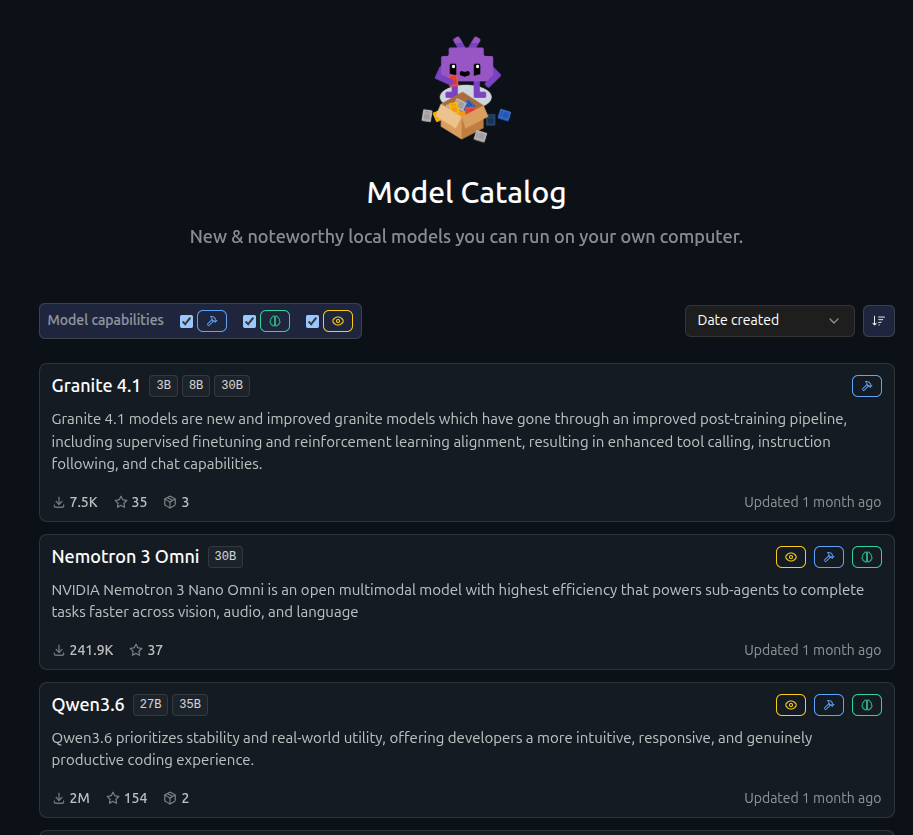
Some of the models available in LM Studio (Source: LM Studio’s website)
When a user submits a prompt, the request is processed directly on the local machine rather than being sent to a cloud provider. The model analyzes the prompt, generates a response, and returns the output through the application’s interface.
Under the hood, LM Studio handles many technical tasks that would otherwise require manual configuration. It manages model loading, memory allocation, hardware acceleration, inference settings, and conversation management. This abstraction allows users to benefit from sophisticated AI technology without needing to understand every technical detail behind it.
For developers, LM Studio also offers a local API server that can mimic OpenAI-compatible endpoints. This means applications can often switch from cloud-hosted models to local models with minimal code changes. For AI engineers building prototypes or testing agent workflows, this feature can save a significant amount of time.
How to Install LM Studio
LM Studio’s installation is designed to be straightforward. The development team has focused heavily on creating a user-friendly onboarding experience, which is one of the reasons the software has gained widespread adoption.
The first step is downloading the appropriate installer from the official LM Studio website. Versions are available for Windows, macOS, and Linux.
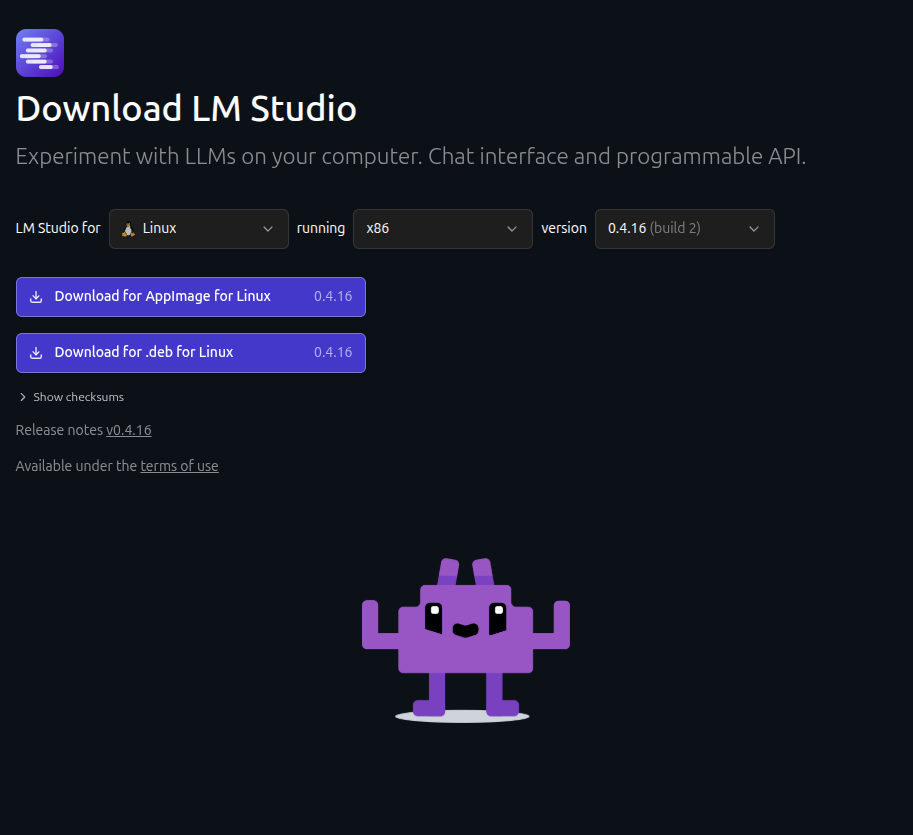
Screen you are shown when having to the select the installer (Source: LM Studio’s website)
Once the installer has been downloaded, you can simply run the setup process and follow the on-screen instructions.
After installation, LM Studio launches like any other desktop application. You are then presented with an interface that allows you to browse available models, download your preferred model, and begin interacting with it. The software handles most of the technical setup automatically, making the process considerably easier than traditional local inference solutions.
How to Install LM Studio on Linux
When it comes to Linux installations, the process varies slightly depending on the Linux distribution being used, but modern distributions generally provide a smooth experience. Most people download the Linux release package, grant executable permissions, and launch the application.
Linux users often appreciate LM Studio because it combines the flexibility of open-source AI with a polished graphical interface. While command-line tools remain popular among advanced users, LM Studio offers a more approachable experience without sacrificing functionality.
For developers who spend most of their time working within Linux environments, LM Studio can serve as an excellent tool for testing models before integrating them into larger workflows or production systems.
How to Install LM Studio on Ubuntu
For Ubuntu, the process typically involves downloading the AppImage package from the official website and making it executable. Once permissions have been configured, you can launch the application directly from the terminal or through their file manager.
The commands generally look like this:
chmod +x LM-Studio.AppImage

./LM-Studio.AppImage
After launching the application, you can browse the model catalog, download models, and begin experimenting immediately.
Ubuntu tends to provide a stable environment for LM Studio, particularly on systems with modern GPUs and sufficient memory. However, even CPU-only systems can run smaller models successfully, although performance may vary depending on hardware specifications.
How to Use LM Studio
The typical LM Studio workflow begins with selecting a model. LM Studio provides access to a wide range of open-source models optimized for different use cases. Some models excel at coding, while others are designed for general conversation, research assistance, reasoning, or content generation.
Once a model has been downloaded, you can load it into memory and start a chat session. Prompts can then be entered directly into the interface, much like using ChatGPT or Claude.
Beyond basic chat functionality, LM Studio also provides configuration options that allow you to adjust generation parameters such as temperature, context window size, and token limits. These settings can influence how creative, deterministic, or detailed model responses become.
For more advanced users, the local API server is arguably one of LM Studio’s most powerful features. Developers can connect applications, agent frameworks, and automation systems directly to local models. This makes LM Studio useful not only for experimentation but also for building AI-powered applications that operate without relying on cloud providers.
LM Studio vs Ollama
One comparison that frequently appears in discussions about local AI is LM Studio versus Ollama. Both tools aim to simplify local AI deployment, but they approach the problem from different directions.
LM Studio focuses heavily on user experience. Its graphical interface, built-in chat environment, and integrated model discovery tools make it ideal for users who want a visual workflow. Someone new to local AI can often become productive with LM Studio within minutes.
Ollama, on the other hand, takes a more developer-centric approach. It relies heavily on command-line interactions and is often preferred for automated workflows, server deployments, and production systems.
In my own projects involving AI agents, I often use Ollama when building automated systems because it integrates cleanly into backend workflows. However, for evaluating models, comparing performance, and quickly testing ideas, LM Studio is often the faster and more convenient option. The choice ultimately depends on whether your priority is ease of use or workflow automation.
Final Thoughts
LM Studio has played an important role in making local AI more accessible. By removing much of the complexity traditionally associated with running large language models, it has opened the door for developers, businesses, researchers, and hobbyists to experiment with open-source AI on their own hardware.
Whether you’re researching what is LM Studio, exploring what is LM Studio AI, learning how to install LM Studio, looking for guidance on how to install LM Studio on Ubuntu, trying to understand how to install LM Studio on Linux, or simply figuring out how to use LM Studio, the software provides one of the easiest entry points into the world of local AI.
As open-source models continue to improve and businesses place greater emphasis on privacy, cost control, and ownership of their AI infrastructure, tools like LM Studio are likely to become even more important. For anyone interested in running AI locally, it remains one of the most practical and beginner-friendly solutions available today.
A concise FAQ section that fits your article:
Frequently Asked Questions
Is LM Studio fully free?
Yes, LM Studio is free to download and use for personal and commercial purposes. The software itself does not require a subscription fee. However, running AI models locally may require capable hardware, and some third-party models or services integrated with LM Studio may have their own licensing requirements. Most popular open-source models available through LM Studio can be used at no additional cost.
Which one is better, Ollama or LM Studio?
Neither tool is objectively better; they serve different audiences. LM Studio is generally better for beginners and users who prefer a graphical interface, built-in chat environment, and easy model discovery. Ollama is often preferred by developers who want command-line tools, automation capabilities, and easier integration into backend applications and AI agent workflows. If your goal is experimenting with local models, LM Studio is usually the easier starting point. If you’re building production systems or automating AI workflows, Ollama may be the stronger choice.
How much RAM do I need for LM Studio?
The amount of RAM required depends on the size of the model you want to run. Smaller 7B parameter models can often run comfortably with 8GB to 16GB of system RAM, while larger models may require 32GB, 64GB, or more. Systems with dedicated GPUs and sufficient VRAM can offload some of the memory requirements and improve performance. For most users getting started with local AI, 16GB of RAM is a practical minimum recommendation.
What is LM Studio used for?
LM Studio is used to run large language models locally on your own computer. It allows users to discover, download, and interact with open-source AI models without relying on cloud-based AI providers. Common use cases include AI chat, coding assistance, content creation, model testing, research, private AI deployments, and local API hosting for AI-powered applications. Developers also use LM Studio to prototype AI solutions and experiment with different models before deploying them in production environments.

Steven Walgenbach is an AI Engineer specializing in AI agents, large language models, retrieval-augmented generation and business process automation. He designs and builds practical AI systems that connect with existing tools, data sources and workflows to help businesses reduce manual work, improve decision-making and scale more efficiently.
His work includes developing multi-agent systems, private and locally hosted AI solutions, custom knowledge assistants, SEO automation pipelines and LLM-powered applications using Python, LangGraph, CrewAI, the OpenAI Agents SDK and other modern AI frameworks.
Through AIMEC, Steven helps businesses move beyond AI experimentation and identify practical opportunities where artificial intelligence can deliver measurable operational and commercial value.