Ollama and n8n are some of the best AI tools in the market at the moment. N8n, which gives you the ability to build powerful workflows with a simple graphical user interface (GUI), and Ollama, which enables you to run open source models locally on your machine, are a powerful combination.
Integrating Ollama with n8n unlocks a powerful pattern: agentic automation. Instead of hardcoding logic, your AI agent dynamically discovers and calls workflows as tools—turning n8n into a live execution layer for your LLM.
As an AI engineer and the founder of AIMEC, I frequently use a combination of both tools when clients ask for automation and AI solutions. In my 3 years experience in the market, there has rarely been an automation or AI task that I have not been able to build a solution for with these tools.
In this guide, I’’s explain how to connect n8n workflows as tools for Ollama using a dynamic Python agent that:
- discovers available workflows via the n8n API
- extracts tool metadata from webhook nodes
- allows Ollama to choose and call tools intelligently
What is n8n?
n8n is an extendable, low-code workflow automation tool designed to help users connect different software applications and automate repetitive tasks.
Unlike many of its competitors, it follows a “fair-code” distribution model, allowing users to self-host the software on their own servers or use a managed cloud version.
Key Characteristics
- Node-Based Interface: It uses a visual, flow-chart-style canvas. Each “node” represents a specific action (like “Send an Email”) or a trigger (like “New Spreadsheet Row”). You build automations by dragging and dropping these nodes and connecting them with lines.
- Self-Hosting Capabilities: One of n8n’s biggest differentiators is that it can be installed locally or on a private VPS (Virtual Private Server). This offers significant advantages for data privacy and security, as sensitive information never has to leave your controlled environment.
- High Flexibility: While it is “low-code,” it is extremely developer-friendly. If a built-in node doesn’t do exactly what you need, you can write custom JavaScript directly within the workflow to transform data or handle complex logic.
- Extensive Integrations: It supports hundreds of native integrations with popular services like Google Sheets, Slack, Discord, OpenAI, and various databases. For services without a native node, you can use a generic HTTP Request node to connect to any API.
What is Ollama?
Ollama is an open-source framework designed to let users run large language models (LLMs) locally on their own hardware. It simplifies the complex process of setting up and managing AI models, providing a streamlined experience that feels similar to using a package manager for software.
Key Features and Capabilities
- Local Execution: Unlike cloud-based AI services, Ollama runs entirely on your machine. This ensures that your data never leaves your local environment, making it an ideal solution for privacy-conscious projects and sensitive data handling.
- Model Library: It provides easy access to a wide variety of popular open-source models, such as Llama 3, Mistral, Gemma, and Phi-3. You can download and switch between these models with a single command.
- Resource Efficiency: Ollama is highly optimized to run on consumer-grade hardware. It leverages GPU acceleration (particularly on macOS with Metal and Linux/Windows with NVIDIA/AMD) to ensure fast response times even without enterprise-level servers.
- Simple API: Once a model is running, Ollama exposes a local REST API. This allows other applications, scripts, or automation tools to send prompts and receive responses just as they would with a paid API service.
Why Use Ollama?
| Feature | Benefit |
| Cost | Completely free to use; you only pay for the electricity your computer consumes. |
| No Latency/Downtime | Since it doesn’t rely on an internet connection, you aren’t affected by external server outages or rate limits. |
| Customization | You can create “Modelfiles” to define specific system prompts, temperatures, and parameters for your models. |
| Portability | It packages the model weights, configuration, and datasets into a single managed unit. |
Integration with Modern Tech Stacks
Ollama is frequently used as the “brain” for local automation. Because it can be bundled into larger systems, developers often use it to power private AI agents or document-processing pipelines. By combining it with orchestration tools, you can create a setup where an AI analyzes data locally and triggers actions across your other apps without ever touching the public cloud.
Hardware Tip: While Ollama can run on a standard CPU, it performs best on machines with at least 8GB of RAM (for 7B models) and dedicated video memory.
Why I Prefer Ollama Over Third-Party AIs
Third-party AI’s are powerful, but they have one major drawback: data privacy.
When I work with clients, data privacy is often the first thing they ask about. Can you imagine the lawsuits that will come your way if you hand over confidential customer information to a company like OpenAI or Anthropic? Yeah, better to protect this data in the age of AI.
That’s why I love using Ollama. The slightly longer wait times for requests are far outweighed by the peace of mind that clients, and myself, will not be hit with a lawsuit for exposing confidential information.
Why Use n8n as a Tool Layer for Ollama?
Before jumping into code, it’s important to understand the value of giving an Ollama agent n8n workflows as tools.
Traditional AI agents have long been constrained by static APIs, hardcoded tools, and rigid integrations. In these conventional setups, the agent’s capabilities are predefined and brittle; if a service changes or a new requirement emerges, developers must manually rewrite the underlying code to accommodate the shift. This creates a “black box” environment where the logic is difficult to visualize and even harder to scale as workflows grow in complexity.
By contrast, n8n transforms how agents interact with the digital world. Instead of writing lines of boilerplate code, you visually build workflows using a node-based interface that maps out every step of a business process. Once these workflows are created, you can expose them via webhooks, turning complex multi-step automations into modular, callable tools. This architectural shift allows you to let your AI dynamically discover and use them, enabling the agent to select the right workflow for the task at hand and execute it with precision, effectively treating your entire automation library as a flexible brain.
That creates a modular, scalable agent system where:
- adding a new tool = adding a new workflow
- no Python changes required
How To Build a Dynamic AI With N8n Workflows as Tools
Now that we have gone over the theory, let’s get our hands dirty with actual coding!
Here’s how everything will connect:
User → Ollama Agent → Tool Selection
↓
Python Orchestrator
↓
n8n Webhook
↓
Workflow Execution
↓
Response → Ollama
Prequisites
Before we begin, there are some things that you need to set up first.
Firstly, you will need n8n downloaded and running on either your local setup or a cloud server that you manage. Once your n8n environment is set up, you need to open up the web interface, create an account, login, and then create an API key.
Next, you’ll need Ollama installed and a local model pulled. Be sure to install a model that has the ability to use tools. I personally use llama3.1:8b. This is an 8 billion parameter model, and it is enough to do the job on my personal computer.
Lastly, you’ll need to create n8n credentials for the Google Analytics 4 and Google Search Console nodes. To do this, go to Google Cloud Console and create an app. You’ll then need to go to “Enable APIs” under the app, search for “Google Search Console” and “Google Analytics,” click “enable” for each. The last step is to create credentials for each and then store them in n8n.
Here is a good video walkthrough on how to set up Google credentials in n8n:
With that, you will have everything you need to set up this system on your PC.
Step 1: Create n8n Workflows with Webhooks
Each workflow in n8n starts with a trigger. This trigger can either be a manual trigger that you execute by yourself, a time trigger, or a webhook trigger. For this system that we are going to build, we will be using webhook triggers. This way we can trigger them with code. Or rather, we can get the AI to trigger them.
We will build 3 example tools:
- GA4 analytics fetcher
- Google Search Console insights fetcher
- generic HTTP fetch tool
Here is what the workflow will look like:
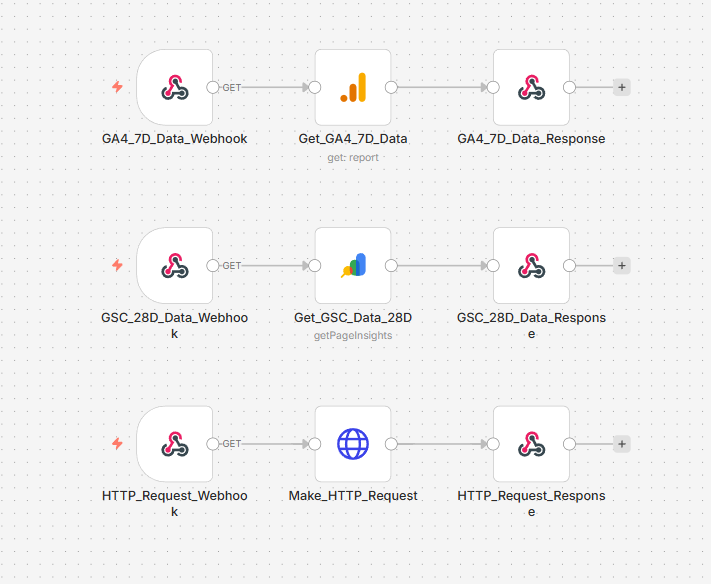
N8n workflow that we will be building for this system (Source: n8n)
Looking at it, it’s pretty simple. We have three workflows, each with their own webhooks.
The first workflow that is triggered by the “GA4_7D_Data_Webhook” connects to a Google Analytics 4 node, which is then connected to a respond to webhook node.
The second workflow that starts with the webhook “GSC_28D_Data_Webhook” is connected to a Google Search Console node, which then returns its response to the webhook.
Be sure to use those credentials you created for the Google Analytics 4 and Google Search Console nodes.
Lastly, the last workflow that starts with the “HTTP_Request_Webhook” node connects to an HTTP request node, which just calls a URL via a GET request before returning the response.
Note: For the webhook node at the beginning of each workflow, I have set their response type to “respond to webhook.” This way the data that is fetched in the workflow is returned with each call.
Key Requirement: Metadata in Webhook Notes
You must define tool metadata inside the webhook node’s Notes field.
Example:
ai_tool_metadata:

  tool_name: get_ga4_7d_data

  description: Fetch recent GA4 analytics data

  input_contract:

    required_fields: []

    optional_fields:

      - metrics

      - dimensions
You don’t have to do this for each node in the workflow, just for each of the webhook nodes. To do this, simply double-click the webhook node, select “settings,” and then paste the metadata with your values in the “notes” section.
The metadata is what your Python agent will use to dynamically register tools.
Step 2: Define the Tool Model in Python
Next, create a model that represents a discovered n8n tool.
from dataclasses import dataclass, field

from typing import Any, Dict, Literal

InputTransport = Literal["json", "query"]

@dataclass

class N8NDiscoveredTool:

    workflow_id: str

    workflow_name: str

    node_name: str

    path: str

    method: str

    description: str = ""

    tool_name_override: str = ""

    input_schema: Dict[str, Any] = field(default_factory=dict)

    input_transport: InputTransport = "json"

    @property

    def tool_name(self) -> str:

        return self.tool_name_override or f"{self.workflow_name}_{self.node_name}"

    def get_url(self, base_url: str, mode: str = "production") -> str:

        prefix = "webhook-test" if mode == "test" else "webhook"

        return f"{base_url}/{prefix}/{self.path}"
This is so that we can make the tool discovery more structured and ensures a level of control when letting the AI see what functionality it wants to use based on what we build in the n8n workflow.
Step 3: Discover Tools from n8n Automatically
Now we connect to n8n’s API and extract webhook-based tools.
import requests

import yaml

class N8NWorkflowDiscovery:

    def __init__(self, base_url, api_key):

        self.base_url = base_url

        self.api_key = api_key

    def list_workflows(self):

        r = requests.get(

            f"{self.base_url}/api/v1/workflows",

            headers={"X-N8N-API-KEY": self.api_key},

        )

        return r.json()["data"]

    def discover_tools(self):

        tools = []

        for wf in self.list_workflows():

            wf_data = requests.get(

                f"{self.base_url}/api/v1/workflows/{wf['id']}",

                headers={"X-N8N-API-KEY": self.api_key},

            ).json()

            for node in wf_data["nodes"]:

                if "webhook" not in node["type"].lower():

                    continue

                metadata = yaml.safe_load(node.get("notes", "")) or {}

                tool_meta = metadata.get("ai_tool_metadata", {})

                tools.append(

                    N8NDiscoveredTool(

                        workflow_id=wf["id"],

                        workflow_name=wf_data["name"],

                        node_name=node["name"],

                        path=node["parameters"]["path"],

                        method=node["parameters"].get("httpMethod", "POST"),

                        description=tool_meta.get("description", ""),

                        tool_name_override=tool_meta.get("tool_name", ""),

                    )

                )

        return tools
Remember that n8n API key you created? This is where you will use it. Otherwise you can create a .env file and then store the keys in there. This is the best approach for production.
With that tool discovery, your agent can automatically discover all tools without hardcoding anything.
Step 4: Build the Ollama Agent
Next, we let Ollama choose which tool to call.
import requests

import json

class DynamicOllamaAgent:

    def __init__(self, tools, model, ollama_url):

        self.tools = {t.tool_name: t for t in tools}

        self.model = model

        self.url = ollama_url

        self.messages = []

    def _call_ollama(self):

        r = requests.post(self.url, json={

            "model": self.model,

            "messages": self.messages,

            "stream": False

        })

        return r.json()["message"]["content"]

    def run(self, user_input):

        self.messages.append({"role": "user", "content": user_input})

        for _ in range(5):

            output = self._call_ollama()

            try:

                tool_call = json.loads(output)

            except:

                return output

            tool = self.tools.get(tool_call["tool_name"])

            if not tool:

                return "Tool not found"

            result = self._call_tool(tool, tool_call["arguments"])

            self.messages.append({"role": "assistant", "content": output})

            self.messages.append({

                "role": "user",

                "content": f"Tool result:\n{json.dumps(result)}"

            })

        return "Max steps reached"
Step 5: Call n8n Webhooks
Your agent must correctly send inputs depending on how the workflow is built.
def _call_tool(self, tool, args):

    url = tool.get_url("http://localhost:5678")

    if tool.method == "GET":

        r = requests.get(url, params=args)

    else:

        if tool.input_transport == "query":

            r = requests.post(url, params=args)

        else:

            r = requests.post(url, json=args)

    return r.json()
Common Issues and Fixes
Below are some of the common issues you might run in to when building this system and how to resolve them.
1. 404 Webhook Error
- Workflow not active
- Using /webhook instead of /webhook-test
2. Tool Not Called Correctly
- Missing metadata in webhook notes
- Wrong tool_name
3. Request Fails
- Wrong transport (json vs query)
- n8n node expects $json.query.*
Conclusion: The Future of Private, Agentic Automation
By connecting n8n and Ollama, you aren’t just building a simple chatbot—you are constructing a private, scalable operating system for AI.
This architecture moves you away from the limitations of rigid, hardcoded integrations and toward a future where your AI can intelligently survey its environment, understand the tools at its disposal, and execute complex business processes without human intervention.
The synergy between these two tools addresses the three biggest hurdles in modern AI implementation:
- Privacy: By running Ollama locally and self-hosting n8n, you maintain absolute sovereignty over your data.
- Scalability: Adding a new capability to your AI is as simple as dragging a few nodes in n8n; your Python orchestrator handles the rest dynamically.
- Flexibility: You bridge the gap between “low-code” ease of use and “high-code” custom logic, ensuring you never hit a wall in what you can automate.
As an AI engineer, I’ve seen firsthand how this setup empowers businesses to innovate safely. Whether you are fetching real-time analytics, managing databases, or automating customer outreach, the n8n + Ollama stack provides a professional-grade foundation that is both cost-effective and remarkably powerful.
Now that you have the framework, the only limit is what workflows you choose to build. Start small, experiment with different models, and watch as your local AI evolves into a truly capable autonomous agent.
Ready to Build Your Own Autonomous Future?
I specialize in turning complex AI theory into functional, high-efficiency reality. Whether you’re looking to deploy private, local LLMs with Ollama or build sophisticated, self-healing automation engines with n8n, I bridge the gap between “off-the-shelf” limitations and bespoke intelligence.
Don’t let rigid APIs or data privacy concerns hold your business back. Let’s collaborate to build an agentic ecosystem tailored specifically to your unique workflows and security requirements.
How We Can Help:
- Custom AI Agent Development: Building autonomous agents that interact with your existing tech stack.
- Private AI Infrastructure: Setting up local, secure environments to protect your proprietary data.
- Advanced n8n Orchestration: Creating high-volume, “Human-in-the-Loop” automation engines.
- Scalable AI Solutions: Moving beyond simple prompts into complex, multi-step tool execution.
Let’s Automate the Extraordinary
Stop fighting with hardcoded tools and start building a dynamic AI workforce.
Book a Strategy Session with Aimec
Transform your workflows from static scripts into intelligent, self-discovering assets today.
Frequently Asked Questions
Does my hardware need a GPU to run this setup?
While a GPU is not strictly required, it is highly recommended. Ollama can run on a CPU, but response times for tool-calling may be significantly slower. For the best experience with models like Llama 3.1 8B, a machine with at least 8GB of VRAM (NVIDIA) or Apple Silicon (M1/M2/M3) is ideal for “near-instant” agent reasoning.
Can I use any Ollama model as an agent?
No. To use n8n workflows as tools, the model must support Tool Calling (also known as Function Calling). We recommend using Llama 3.1 (8B or larger), Mistral, or Qwen 2.5. Smaller or older models often “hallucinate” the tool syntax instead of executing the actual webhook call.
Why am I getting a 404 error when the agent tries to call a workflow?
This usually happens for one of two reasons:
- Test vs. Production: In n8n, the “Test URL” only works when you have the workflow editor open and are actively “listening” for a test event. For a permanent agent, you must Publish the workflow and use the Production URL.
- Active Status: Ensure the toggle in the top-right corner of your n8n workflow is set to Active.
Is it possible to trigger n8n workflows without Python?
Yes! While this guide uses a Python orchestrator for advanced dynamic discovery, you can also use n8n’s native AI Agent Node. Inside n8n, you can add a “Workflow Tool” to the Agent node, allowing one workflow to call another directly. However, the Python method is superior if you want to build a standalone application or a custom CLI.
How do I keep my n8n API key secure?
Never hardcode your API key directly in your scripts. Use a .env file and a library like python-dotenv to load your credentials. If you are self-hosting n8n, ensure your instance is behind a firewall or VPN so your webhooks aren’t exposed to the open internet.
What happens if the n8n workflow takes too long to respond?
By default, webhooks have a timeout. If your workflow involves heavy data processing (like scraping or complex database queries), set the Webhook node’s “Response Mode” to “Respond Immediately” and use a second “callback” webhook to send the data back to the agent once it’s finished.

Steven Walgenbach is an AI Engineer specializing in AI agents, large language models, retrieval-augmented generation and business process automation. He designs and builds practical AI systems that connect with existing tools, data sources and workflows to help businesses reduce manual work, improve decision-making and scale more efficiently.
His work includes developing multi-agent systems, private and locally hosted AI solutions, custom knowledge assistants, SEO automation pipelines and LLM-powered applications using Python, LangGraph, CrewAI, the OpenAI Agents SDK and other modern AI frameworks.
Through AIMEC, Steven helps businesses move beyond AI experimentation and identify practical opportunities where artificial intelligence can deliver measurable operational and commercial value.